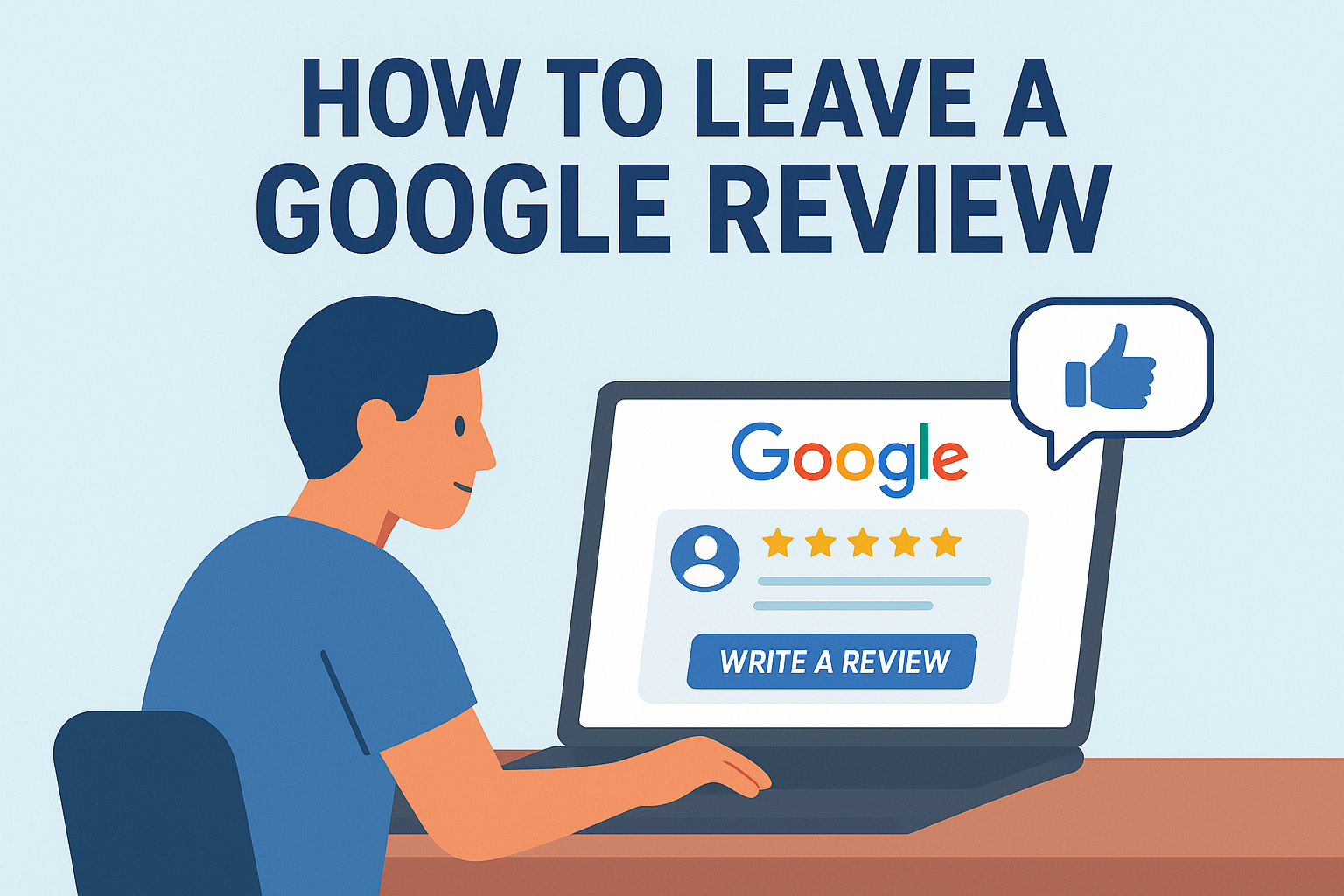
How to Leave a Google Review
Knowing how to leave a Google review is one of the easiest and most effective ways to support your favorite local businesses. Whether you had a great experience at a restaurant, shop, or service provider, sharing your honest feedback helps others make informed decisions and boosts a business’s online reputation.
Why Google Reviews Matter
Before learning how to leave a Google review, it helps to understand why these reviews are so important. Google reviews do more than just share your opinion — they directly influence how businesses appear in search results and how much trust customers place in them.
When a business collects positive, authentic reviews, it signals to Google that it’s credible and reliable. This can improve its ranking on Google Maps and local search results, helping more people discover it online. In fact, studies show that over 90% of customers read online reviews before making a purchase or visiting a store.
From a customer’s perspective, reviews help others make informed choices. A few honest sentences about your experience can guide someone toward the right business — or away from a bad one.
For business owners, Google reviews are a free form of marketing. They can highlight what’s working well, reveal areas for improvement, and build trust with new customers.
How to Leave a Google Review (Step-by-Step Guide)
Learning how to leave a Google review is simple once you know where to look. Whether you’re using a computer or a mobile device, the process only takes a few minutes — and it’s one of the easiest ways to support local businesses. Follow these simple steps below.
How to Leave a Google Review from a Computer
- Sign in to your Google Account.
You must be logged in to your Google account to post a review. - Search for the business on Google.
Type the business name in the search bar and hit Enter. - Open the Business Profile.
You’ll see the business’s Google listing on the right side of your screen (or at the top if you’re using a smaller display). - Click “Write a Review.”
Scroll to the review section and click the blue Write a Review button. - Rate and write your review.
- Choose your star rating (1 to 5 stars).
- Write a few sentences describing your experience.
- Optionally, add photos to show products, meals, or services.
- Click “Post.”
Once you’re satisfied with your review, click Post — and you’re done!
How to Leave a Google Review from a Mobile Device
If you’re using your phone or tablet, you can leave a review through either Google Maps or the Google Search app.
- Open Google Maps or the Google app.
Make sure you’re signed in to your Google account. - Search for the business name.
Tap on the correct listing from the search results. - Scroll to the reviews section.
Tap on Write a Review under the star rating area. - Rate, write, and upload.
- Choose your star rating.
- Type your review.
- Upload photos if you want to share your experience visually.
- Tap “Post.”
Your review will now appear on the business’s Google profile (after moderation).
Tips for Writing a Helpful Google Review
Now that you know how to leave a Google review, it’s just as important to write one that’s clear, fair, and useful to others. A well-written review not only helps potential customers make informed choices but also gives businesses valuable insights to improve their services.
Here are some simple but effective tips to make your Google review stand out:
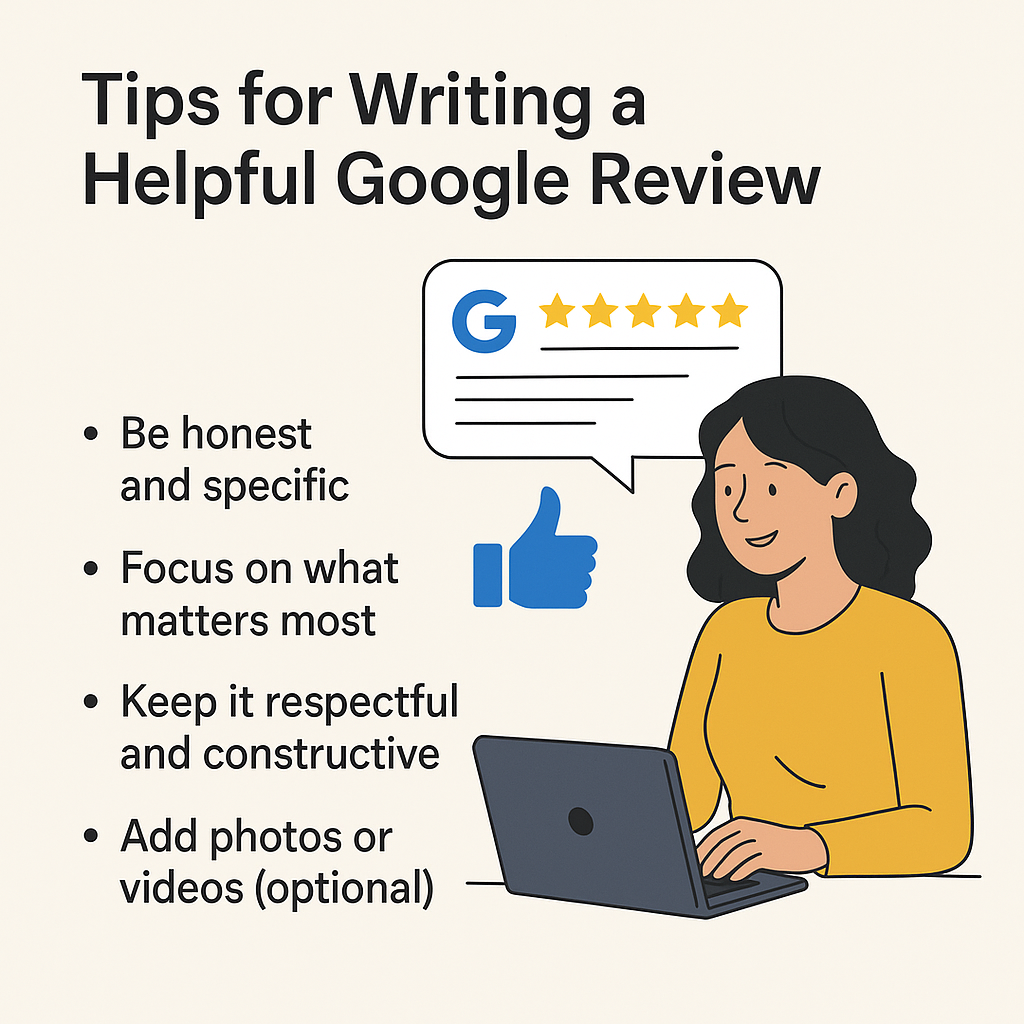
1. Be Honest and Specific
Honesty builds trust. Whether your experience was great or disappointing, describe it truthfully. Include specific details like what you ordered, who helped you, or what made your experience memorable (good or bad).
2. Focus on What Matters Most
Readers appreciate reviews that get straight to the point. Mention key aspects such as:
- Quality of service or product
- Cleanliness and atmosphere
- Staff behavior and professionalism
- Value for money
3. Keep It Respectful and Constructive
Even if your experience wasn’t perfect, stay polite. Constructive criticism helps businesses improve and sounds more credible than overly negative comments.
✅ Example: Instead of saying “Terrible service,” try “The service was slower than expected, but the staff was polite and helpful once they arrived.”
4. Add Photos or Videos (Optional)
Visuals make your review more trustworthy. If appropriate, add photos of your meal, product, or the business location. This gives other users a real sense of what to expect.
5. Avoid Sharing Personal or Sensitive Information
Don’t include personal contact details or private information about employees or customers. Keep the focus on your experience with the business itself.
6. Keep It Concise
A few thoughtful sentences are usually enough. Long reviews can overwhelm readers, so aim for around 3–5 short paragraphs that cover the essentials.
How to Edit or Delete a Google Review
After learning how to leave a Google review, you might later want to make changes — maybe you noticed a typo, your experience with the business changed, or you want to remove your feedback altogether. Thankfully, Google makes it simple to edit or delete your reviews anytime.
Here’s how to do it step-by-step.
How to Edit a Google Review
- Open Google Maps on your computer or mobile device.
Make sure you’re signed in with the same Google account you used to write the review. - Go to “Your Contributions.”
Tap your profile icon (or menu icon ☰), then select Your Contributions → Reviews. - Find the review you want to edit.
Scroll through your list of reviews until you find the one you’d like to update. - Click the three dots (⋮) next to the review.
A small menu will appear with options to Edit or Delete. - Select “Edit.”
Make your changes — fix spelling, add new details, or adjust your rating. - Save your changes.
Click Post to update your review. Your edited review will immediately replace the old one.
How to Delete a Google Review
- Open Google Maps and go to “Your Contributions.”
Use the same steps as above to locate your reviews. - Find the review you want to remove.
Scroll down until you see the review you’d like to delete. - Click the three dots (⋮) next to the review.
Select Delete. - Confirm deletion.
Once deleted, the review will be permanently removed from the business’s Google profile.
Common Problems and Fixes
Even though learning how to leave a Google review is simple, sometimes things don’t go as smoothly as expected. You might not see your review right away, or you may run into technical issues when trying to post it. Here are some of the most common problems users face — and quick ways to fix them.
1. My Google Review Isn’t Showing Up
Possible Cause:
Google reviews are sometimes delayed or filtered. This happens when Google’s system detects suspicious activity or when the review is under moderation.
Fix:
- Wait 24–48 hours — reviews can take time to appear.
- Avoid including links, emojis, or personal information in your review.
- Make sure you’re posting from a legitimate Google account.
2. I Can’t Find the Business I Want to Review
Possible Cause:
The business might not have a verified Google Business Profile or may have changed its name.
Fix:
- Double-check the spelling of the business name.
- Add the city or area to your search (e.g., “Sunrise Café Nairobi”).
- If it still doesn’t appear, the business may not be listed on Google yet.
3. I’m Getting an Error When Trying to Post
Possible Cause:
You may not be signed in, or there’s a temporary issue with your internet connection or browser.
Fix:
- Ensure you’re logged into your Google account.
- Refresh the page or clear your browser’s cache.
- Try again using Google Chrome or the Google Maps app.
4. I Can’t Edit or Delete My Review
Possible Cause:
You might be signed into the wrong Google account or trying to edit from the wrong place.
Fix:
- Go to Google Maps → Your Contributions → Reviews.
- Check that you’re logged in with the same account used to write the review.
- From there, click the three dots (⋮) next to your review to edit or delete it.
5. My Photos Won’t Upload
Possible Cause:
Large image files or unstable internet can prevent uploads.
Fix:
- Compress or resize your images before uploading.
- Try using a stronger internet connection.
- Wait a few minutes and re-attempt the upload.
6. I Left a Review by Mistake
Fix:
Simply delete the review by following the steps in the “How to Edit or Delete a Google Review” section above.
Frequently Asked Questions (FAQs)
If you’re still unsure about how to leave a Google review or how the process works, these frequently asked questions will help clear things up.
1. Can I leave a Google review without a Google account?
No. You must be signed in to a Google account to leave a review. This ensures that reviews are authentic and helps Google prevent spam or fake feedback.
2. How long does it take for my Google review to appear?
Most Google reviews show up instantly, but sometimes they can take 24 to 48 hours to appear. Google occasionally delays or filters reviews to confirm they meet its content guidelines.
3. Can I edit my review after posting it?
Yes! If you made a mistake or want to update your feedback, you can easily edit it. Go to Google Maps → Your Contributions → Reviews, find your review, click the three dots (⋮), and select Edit.
5. Can I leave a review anonymously?
No. Google no longer allows anonymous reviews. Each review is linked to your Google account name and profile picture to maintain transparency and authenticity.
5. Can I leave a review anonymously?
No. Google no longer allows anonymous reviews. Each review is linked to your Google account name and profile picture to maintain transparency and authenticity.
7. Why did my review disappear?
Sometimes, Google’s automated system removes reviews that look suspicious or violate its content rules — even if posted by a real person. To avoid this, make sure your review is genuine, respectful, and does not include promotional links or personal info.
8. Is there a limit to how many Google reviews I can write?
No, there’s no specific limit. You can review as many businesses as you like, as long as each review is genuine and based on a real experience.
Final Thoughts: How to Leave a Google Review
Learning how to leave a Google review is a simple yet powerful way to make a real difference for local businesses. Your feedback helps others choose where to shop, eat, or get services — and it gives business owners valuable insights to improve their customer experience.